How to Install an SSL Certificate and Check HTTPS
Install an SSL certificate through your host or Certbot, choose domain validation, check HTTPS, and test automatic renewal.

- https
- tls
- certificates
- security
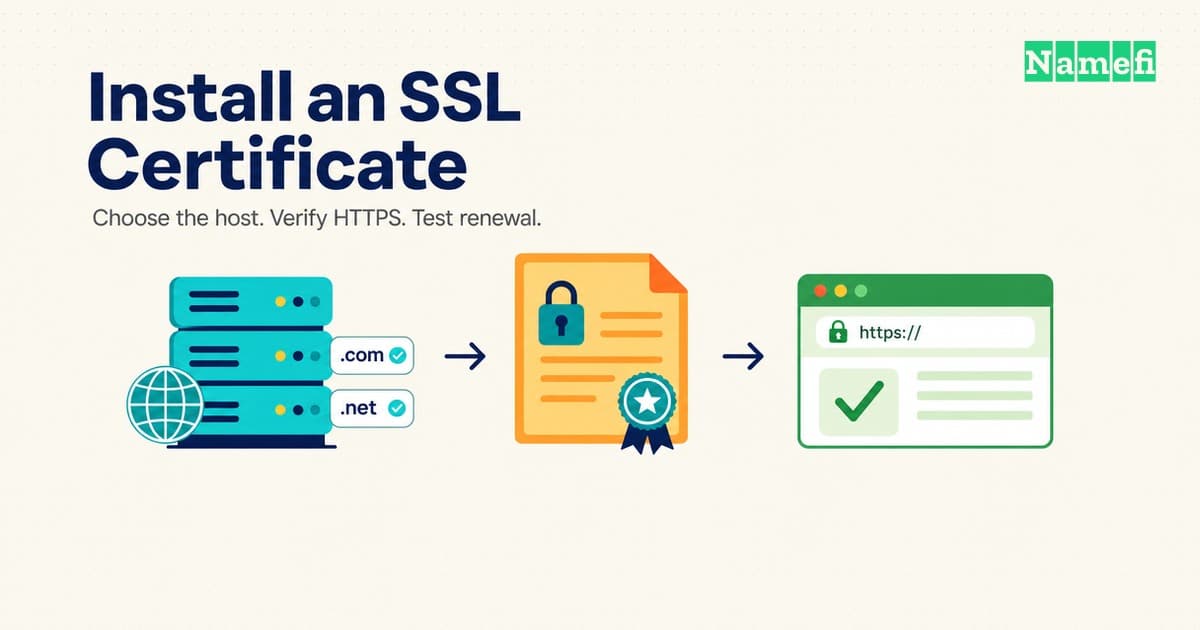
To install an SSL certificate, start with the service that serves your website. Your hosting provider may manage certificates already. A server you administer needs its own certificate workflow.
People commonly call these SSL certificates. Modern HTTPS uses TLS. Our HTTPS explainer covers the underlying concepts. This guide covers installation and the checks that follow.
Your hosting arrangement determines the installation method
Let’s Encrypt asks users to check their hosting provider first. A managed provider can operate the ACME client and renew certificates for you. Buying a domain alone does not tell you who manages HTTPS.
| Your setup | Your next action |
|---|---|
| Managed website platform or hosting account | Read the provider’s custom-domain and HTTPS instructions |
| Linux server that you administer | Select an ACME client and the instructions for your web server |
| Website behind a reverse proxy | Check both the public certificate and the origin connection |
Sign in with an account authorized to manage the website. Keep private keys and DNS credentials out of support tickets and public repositories.
Managed hosting users should enable the provider’s certificate service
- Add the domain to the correct website in the hosting account.
- Configure the DNS records specified by the host.
- Enable the host’s HTTPS or automatic certificate option, if required.
- Wait for the host to report successful issuance.
- Open the HTTPS website and check the hostname.
The provider’s instructions determine the exact controls and DNS values. Do not copy another website’s records. Your registrar, DNS provider, and web host can be different companies.
Server administrators can use Certbot with Nginx
The following route assumes Linux with snap support, Nginx, an existing HTTP website, and administrator access. Use Certbot’s selected Nginx instructions for the complete prerequisites and installation commands. Select another configuration if your operating system or server differs.
Back up the Nginx configuration before allowing Certbot to edit the configuration. Confirm that DNS reaches the intended server. HTTP validation needs public access to TCP port 80; serving HTTPS needs TCP port 443.
After installing Certbot through the selected instructions, run sudo certbot --nginx. Certbot can obtain the certificate and configure Nginx. Select every hostname the website needs. The command sudo certbot certonly --nginx obtains a certificate without installing the certificate into the server configuration.
Then run sudo certbot renew --dry-run. Certbot’s packages provide a scheduled renewal mechanism. Check the installed timer or cron configuration. A successful test checks the renewal process at that moment. Continue monitoring certificate expiry and renewal failures.
DNS validation serves wildcard and restricted-server requirements
HTTP-01 and DNS-01 prove domain control differently. HTTP-01 retrieves a challenge file through port 80. HTTP-01 cannot issue wildcard certificates.
DNS-01 uses a TXT record under _acme-challenge. DNS-01 supports wildcard certificates and servers without public HTTP access. Use an ACME client integration that can automate the DNS updates. Manual TXT changes require continued manual work unless another process automates the updates.
Use narrowly scoped DNS credentials where the provider supports scoped credentials. Let’s Encrypt warns that full DNS credentials on a compromised web server increase the damage. Delegating the challenge zone can separate validation from the main DNS zone.
Reverse proxies require an origin check as well
A working browser connection to a proxy does not establish that the proxy validates the origin certificate. For Cloudflare, Full (strict) validates the origin connection.
Cloudflare requires an unexpired certificate, an accepted issuer, and a matching hostname. The origin must accept HTTPS on port 443. Configure the origin before enabling the mode. An invalid origin certificate can produce error 526.
You should verify the website after installation
Open each intended hostname with https://. Inspect the certificate details for the hostname, issuer, and validity period. Check an important page and a form, rather than only the home page.
Check the browser console for mixed content: an HTTPS page can still request resources through HTTP. Update resource URLs and application settings where necessary. Check that HTTP requests redirect to the intended HTTPS address without a loop.
| Symptom | Check first |
|---|---|
| Domain validation fails | DNS destination, challenge method, and public challenge access |
| Browser reports the wrong hostname | Certificate names and the server configuration selected for the request |
| Some resources fail | HTTP resource requests in the browser console |
| Cloudflare reports error 526 | Origin certificate validity, issuer, and hostname |
| Renewal test fails | Client logs, challenge access, and DNS authorization |
Installation succeeds when the website serves the correct certificate, application requests work, and the renewal process passes its test. Assign someone to monitor the next renewal.
These sources describe the supported installation methods
Your host can manage certificates
Let’s Encrypt — Getting Started, fetched 2026-10-22. The page distinguishes host-managed certificates from running an ACME client yourself.
Certbot configures Nginx
EFF — Nginx on Linux with snap, fetched 2026-10-22. The installation, certificate-only option, and renewal test appear in the selected instructions.
Choose the validation method
Let’s Encrypt — Challenge Types, fetched 2026-10-22. The HTTP-01 and DNS-01 sections explain port requirements, wildcard support, automation, and credential scope.
Verify the origin connection
Cloudflare — Full (strict), fetched 2026-10-22. The prerequisites specify origin certificate checks and HTTPS access.
Remove mixed content
MDN — Mixed content, fetched 2026-10-22. The guide explains HTTP resource requests within HTTPS pages.
About the author(s)
Namefi is a collective of engineers, designers, and operators who obsess over building tools that make managing your onchain domain names effortless.