So richten Sie E-Mail mit eigener Domain ein
Richten Sie E-Mail mit eigener Domain ein: Dienst wählen, Domain bestätigen, DNS-Einträge setzen und Empfang sowie Versand prüfen.

- domains
- guide

Für eine Adresse wie hello@example.com brauchen Sie die Kontrolle über die Domain, einen E-Mail-Dienst und Zugriff auf die DNS-Einstellungen. Legen Sie zuerst die Postfächer an. Bestätigen Sie danach die Domain, richten Sie den Empfang und die Absenderauthentifizierung ein und testen Sie beide Richtungen. Google verlangt in seiner Checkliste Benutzerkonten vor der MX-Umstellung, die eingehende Nachrichten zum neuen Dienst leitet. Google beschreibt die Reihenfolge.
Diese Anleitung verwendet Google Workspace als dokumentiertes Beispiel. Die grundlegenden Entscheidungen gelten auch für andere Anbieter. Übernehmen Sie die Eintragswerte immer aus dem Einrichtungsdialog Ihres eigenen Anbieters.
Wählen Sie einen Dienst für Ihren E-Mail-Versand
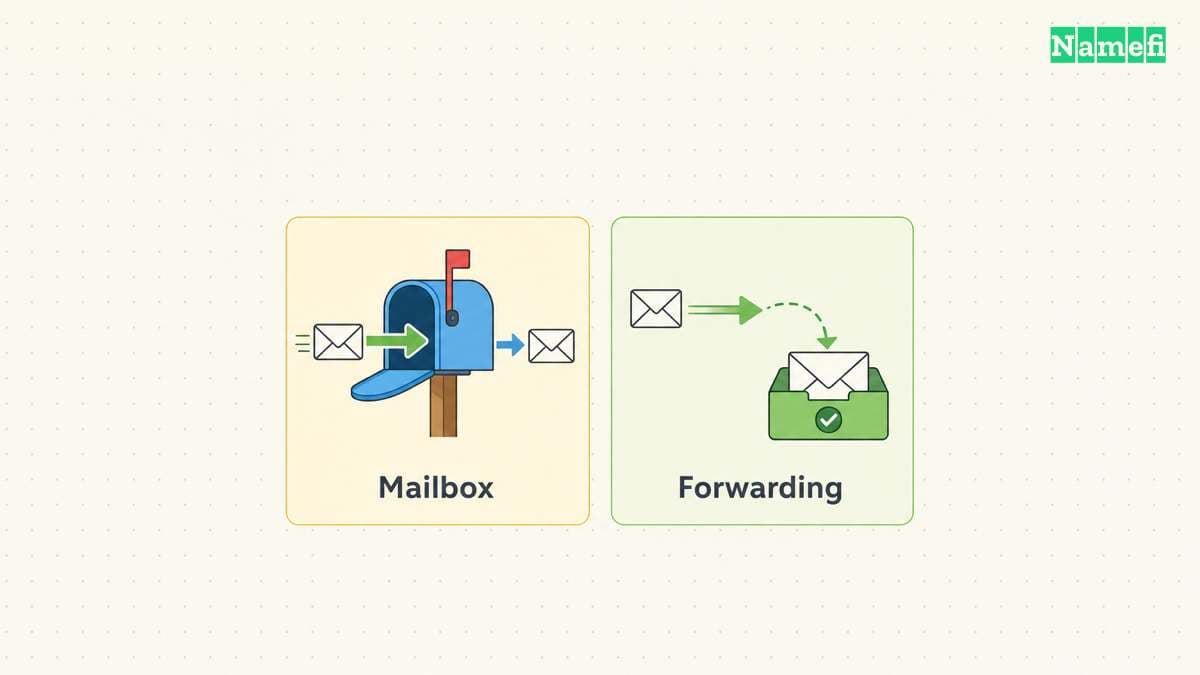
Der Domainkauf und der E-Mail-Dienst erfüllen unterschiedliche Aufgaben. Prüfen Sie vor einem weiteren Kauf, ob Ihr Domainpaket bereits Postfächer enthält. Sie brauchen für diese Einrichtung keine Website. Sie brauchen die Kontrolle über die Domain und die aktive DNS-Zone.
Wählen Sie den Dienst, bevor Sie DNS-Einträge kopieren:
| Ihr Bedarf | Passende Dienstkategorie | Prüfung vor der DNS-Änderung |
|---|---|---|
| Eigene Postfächer und Antworten mit der Domainadresse | Ein gehosteter Postfachdienst, etwa Google Workspace oder Microsoft 365 | Benutzer, Aliasse, Zugriff mit E-Mail-Programmen, Kontowiederherstellung und Migration |
| Persönliche oder Familienadressen in iCloud Mail | Eigene E-Mail-Domain mit iCloud+ | Abonnement, Apple Account und gewünschte Freigabe |
| Zustellung an ein vorhandenes Postfach | Ein Weiterleitungsdienst | Bestätigte Zieladresse und eine gesonderte unterstützte Lösung für Antworten |
Microsoft 365 unterstützt die automatische Domainbestätigung und Einrichtung der Einträge über Domain Connect. Ohne Unterstützung durch den Registrar steht die manuelle Einrichtung zur Verfügung. Microsoft beschreibt die Domaineinrichtung.
Apple verlangt für eigene E-Mail-Domains ein iCloud+-Abonnement. Außerdem brauchen Sie einen Apple Account mit Zwei-Faktor-Authentifizierung und aktiviertes iCloud Mail. Prüfen Sie vor der Auswahl die aktuellen Voraussetzungen. Apple nennt die Voraussetzungen.
Cloudflare unterscheidet eingehendes Email Routing und ausgehenden Transaktionsversand mit Email Sending. Betrachten Sie eine Weiterleitungsregel als Empfangsweg. Setzen Sie die Weiterleitungsregel nicht mit einem vollständigen Postfach gleich. Cloudflare beschreibt die Dienste.
Die kostenlosen E-Mail-Optionen für Unternehmen behandeln Tarifgrenzen und kostenlose Angebote. Diese Anleitung erklärt die Einrichtung nach der Dienstauswahl.
Bereiten Sie die Postfächer und den DNS-Zugriff vor
Entscheiden Sie zuerst zwischen Postfach und Weiterleitung. Ein Postfachdienst stellt jedem Benutzer ein Konto und eine Adresse bereit. Eine Weiterleitung schickt eingehende Nachrichten an einen vorhandenen Posteingang. Cloudflare dokumentiert beispielsweise Regeln, die Nachrichten für eine eigene Adresse an ein bestätigtes Ziel weiterleiten. Vergleichen Sie Googles Kontoeinrichtung mit Cloudflares Weiterleitungsablauf. Prüfen Sie vor dem Einsatz einer reinen Weiterleitung ausdrücklich, wie der Dienst Antworten mit Ihrer Domainadresse unterstützt.
Erstellen Sie eine kurze Bestandsaufnahme:
- Die kontrollierte Domain und die Person mit Änderungsrechten für DNS.
- Den aktiven DNS-Anbieter, der vom Registrar abweichen kann.
- Alle Empfangsadressen für Personen, Aliasse und gemeinsam genutzte Adressen.
- Alle Versanddienste, einschließlich Formularen, Newslettern und Rechnungssoftware.
- Die vorhandenen DNS-Einträge und gegebenenfalls den bisherigen E-Mail-Anbieter.
Sichern Sie auch die Website-Einträge. Die Übersicht der DNS-Eintragstypen (A, AAAA, CNAME, MX, TXT) unterscheidet E-Mail- und Website-Einstellungen. Wenn Registrierung und DNS getrennt liegen, verwenden Sie das Konto des aktiven DNS-Anbieters. DNSimple bestätigt diese Möglichkeit für seinen Dienst. DNSimple beschreibt das unabhängige DNS-Hosting.
Planen Sie bei einem Anbieterwechsel den Erhalt alter Nachrichten, die Einrichtung vorhandener Aliasse und den Empfang während der Umstellung. Die Migration alter Postfachinhalte bildet eine eigene Aufgabe. Googles Checkliste führt den Import vorhandener Nachrichten als zusätzlichen Einrichtungsschritt auf. Die Checkliste enthält die Migrationsoptionen.
Bestätigen Sie die Domain vor der Empfangsumstellung
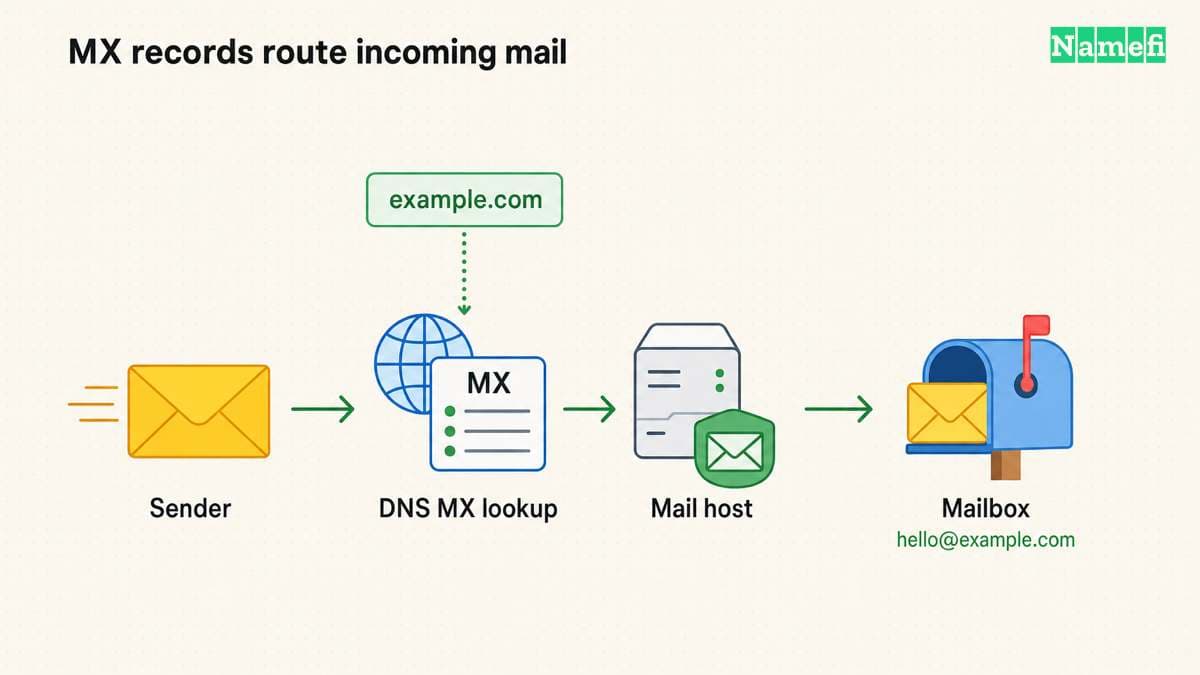
Die Domainbestätigung weist dem E-Mail-Anbieter Ihre Kontrolle nach. Bei Googles dokumentierter TXT-Methode kopieren Sie den eindeutigen Bestätigungswert aus Konto → Domains → Domains verwalten. Fügen Sie den Wert im DNS hinzu und bestätigen Sie anschließend die Domain in der Admin-Konsole. Übernehmen Sie den Eintragsnamen und den Wert genau aus Ihrem Konto. Google erklärt die TXT-Bestätigung.
Die Bestätigung leitet noch keine Nachrichten weiter. Ändern Sie die MX-Einträge erst, wenn die Postfächer bereitstehen. Erhalten Sie unabhängige TXT-, A-, AAAA- und CNAME-Einträge.
Google Workspace nennt aktuell smtp.google.com mit Priorität 1. Aktivieren Sie anschließend Gmail in der Admin-Konsole. Funktionierende ältere Konfigurationen mit aspmx-Zielen bleiben unterstützt und brauchen keine Änderung. Google dokumentiert die MX-Werte und die älteren Einträge.
Googles reguläre Einrichtung verlangt bei der Umstellung das Entfernen anderer MX-Einträge. Kombinieren Sie Anbieter nicht in der Erwartung, jeder Anbieter erhalte eine Kopie jeder Nachricht. Verwenden Sie die vorgesehene MX-Konfiguration.
Vergleichen Sie öffentlich abrufbare MX-Antworten mit den geplanten Werten. Google nennt dafür Admin Toolbox Dig und räumt bis zu 72 Stunden für die Erkennung ein. Korrigieren Sie falsche Einträge, statt auf falsche Einträge zu warten. Google nennt die Prüfschritte.
Authentifizieren Sie jeden Dienst für ausgehende Nachrichten
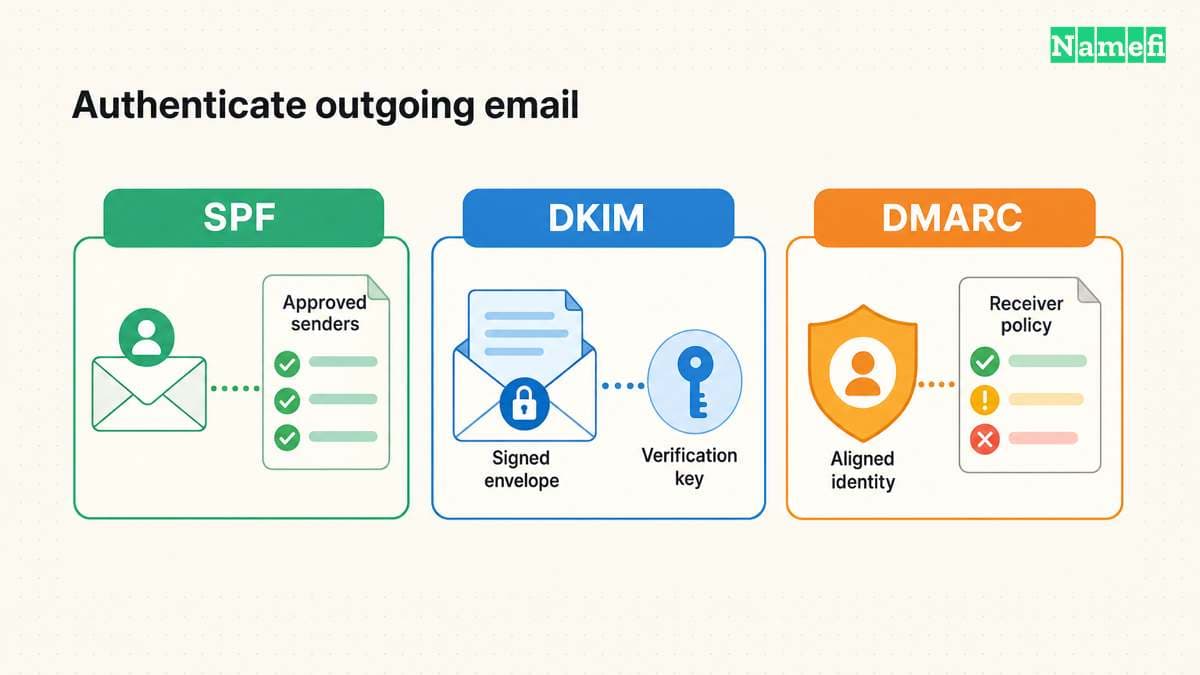
Eine empfangene Nachricht bestätigt nur eine Richtung. Richten Sie die vom Anbieter vorgesehenen Versandverfahren ein. Berücksichtigen Sie auch weitere berechtigte Absender.
| Verfahren | Einrichtung | Zu vermeidender Fehler |
|---|---|---|
| SPF | Eine DNS-TXT-Richtlinie autorisiert die Versanddienste der Domain | Mehrere getrennte SPF-Richtlinien für denselben Namen |
| DKIM | DNS-Informationen des Anbieters ermöglichen die Prüfung ausgehender Signaturen | Veröffentlichung des Eintrags ohne Aktivierung der Signierung |
| DMARC | Richtlinie und Berichte prüfen den Abgleich mit der sichtbaren From-Domain | Erzwungene Ablehnung vor funktionierender Authentifizierung aller berechtigten Absender |
Erfassen Sie vor der SPF-Änderung alle Absender. Google unterscheidet eine reine Workspace-Konfiguration von einer Konfiguration mit Drittanbietern. Die Fehlerbehebung verlangt, mehrere SPF-Einträge zu einem SPF-Eintrag zusammenzufassen. Diese Einschränkung betrifft SPF-Einträge unter demselben Namen. Die Einschränkung verbietet keine anderen TXT-Einträge in der Zone. Lesen Sie die SPF-Einrichtung und die Hinweise zu doppelten SPF-Einträgen.
Befolgen Sie für DKIM die Reihenfolge Ihres Anbieters: Eintrag erzeugen oder beziehen, veröffentlichen und Signierung aktivieren. Google verlangt die Veröffentlichung des öffentlichen Schlüssels vor Authentifizierung starten. Laut Google kann die Schlüsselerzeugung erst 24–72 Stunden nach der Gmail-Aktivierung erfolgen. Der private Signaturschlüssel gehört nicht ins öffentliche DNS. Google beschreibt die DKIM-Schritte.
Eine Nachricht besteht DMARC, wenn SPF samt Domainabgleich oder DKIM samt Domainabgleich zur sichtbaren From-Domain erfolgreich ist. Google empfiehlt zu Beginn p=none, damit Sie Berichte prüfen können. Danach können Sie zu Quarantäne oder Ablehnung übergehen. Google verlangt außerdem mindestens 48 Stunden funktionierende SPF- und DKIM-Authentifizierung vor der DMARC-Aktivierung. Google erklärt DMARC und die schrittweise Einführung.
Erhalten Sie eine vorhandene durchgesetzte DMARC-Richtlinie während der Migrationsplanung. Ersetzen Sie die Richtlinie nicht automatisch durch ein Anleitungsbeispiel. Prüfen Sie zuerst den neuen Anbieter und alle weiteren Absender gegen die vorhandene Richtlinie. Ändern Sie die Richtlinie anschließend nur bewusst.
Prüfen Sie die veröffentlichten Einträge mit dem Namefi-Prüfwerkzeug für die E-Mail-Authentifizierungskonfiguration. Verwenden Sie die Domain und den Selektor des Versanddienstes. Bewahren Sie die Ergebnisse mit der Absenderliste auf. Führen Sie weiterhin unabhängige Zustellungs- und Empfangstests durch, da die DNS-Konfiguration weder die Nachrichtenauthentifizierung noch den Domänenabgleich belegt.
Testen Sie beide Richtungen vor dem Migrationsabschluss
Verwenden Sie externe Konten unter Ihrer Kontrolle oder kooperierende Testpersonen. Senden Sie vom neuen Postfach an einen externen Posteingang. Antworten Sie auf die Nachricht. Senden Sie außerdem eine neue Nachricht an die eigene Domainadresse. Testen Sie Aliasse sowie die tatsächlichen Website- und Rechnungsdienste aus Ihrer Bestandsaufnahme.
Prüfen Sie eine ausgehende Nachricht beim Empfänger. In Gmail zeigt Original anzeigen die Authentifizierungsergebnisse. Googles DKIM-Test verlangt einen anderen Empfänger und die Prüfung von Authentication-Results in der empfangenen Nachricht. Eine Nachricht an die eigene Adresse entspricht nicht diesem Prüfverfahren. Google erklärt die Aktivierung und Prüfung von DKIM.
Wählen Sie die nächste Prüfung anhand des Fehlers:
| Symptom | Nächste Prüfung |
|---|---|
| Die Bestätigung schlägt fehl | Vollständiger Bestätigungswert, richtige DNS-Zone und Eintragsname |
| Eingehende Nachrichten landen beim bisherigen Dienst | Öffentliche MX-Antworten und geplante MX-Umstellung |
| Eine Adresse empfängt Nachrichten, ein Alias aber nicht | Adress- oder Aliaskonfiguration beim neuen Anbieter |
| Die Versandauthentifizierung schlägt fehl | Tatsächlicher Absender, SPF-Richtlinie, DKIM-Signierung und DMARC-Domainabgleich |
| E-Mail funktioniert, die Website aber nicht | Versehentliche Änderung eines Website-Eintrags oder Nameservers |
Halten Sie den bisherigen Dienst verfügbar, bis Ihre Migrationsprüfungen abgeschlossen sind. Hinterlegen Sie den endgültigen Eintragssatz und die Anbieterbestätigung bei der für Verlängerungen zuständigen Person. Der Abschluss verlangt konkrete Ergebnisse: Alle vorgesehenen Adressen empfangen Nachrichten, alle vorgesehenen Dienste versenden Nachrichten und die empfangenen Nachrichten zeigen die erwarteten Authentifizierungsergebnisse.
Die engere Frage nach DNS und Tokenisierung behandelt DNS auf einer tokenisierten Domain.
Diese Quellen belegen die Einrichtungsschritte
- Google Workspace — Gmail mit Google Workspace aktivieren, erforderliche Schritte und zusätzliche Migrationsoptionen. Abgerufen am 21.10.2026.
- Cloudflare — E-Mails weiterleiten, eingehende Weiterleitung und Zielbestätigung. Abgerufen am 21.10.2026.
- DNSimple — DNSimple-Dienste, DNS-Hosting bei einem anderen Registrar. Abgerufen am 21.10.2026.
- Google Workspace — Domain mit einem TXT-Eintrag bestätigen, Schritte 1–3. Abgerufen am 21.10.2026.
- Google Workspace — MX-Einträge einrichten, Eintragstabelle, ältere Einträge, Gmail-Aktivierung und Fehlerbehebung. Abgerufen am 21.10.2026.
- Google Workspace — SPF einrichten, Voraussetzungen und Bestimmung des SPF-Eintrags. Abgerufen am 21.10.2026.
- Google Workspace — SPF-Probleme beheben, genau ein SPF-Eintrag und Drittanbieter. Abgerufen am 21.10.2026.
- Google Workspace — DKIM einrichten, Schlüsselerzeugung, Veröffentlichung, Aktivierung und Prüfung. Abgerufen am 21.10.2026.
- Google Workspace — DMARC einrichten, anfängliche Richtlinie, Domainabgleich und Voraussetzungen. Abgerufen am 21.10.2026.
- Microsoft — Eigene Domain zu Microsoft 365 hinzufügen, automatische und manuelle Einrichtung. Abgerufen am 21.10.2026.
- Apple — Eigene E-Mail-Domain mit iCloud Mail verwenden, Abonnement und Kontovoraussetzungen. Abgerufen am 21.10.2026.
- Cloudflare — Email Service, eingehende Weiterleitung und ausgehender Transaktionsversand. Abgerufen am 21.10.2026.
Über die Autor*innen
Fenwei Bian ist eine Softwareentwicklerin in ihren Dreißigern, die ihre Arbeitszeit mit Pull Requests und ihre Wochenenden mit den Händen in Erde oder Sägemehl verbringt. Durch ihre jahrelange Arbeit an Open-Source-Projekten auf GitHub hat sie gelernt, dass Namen Schnittstellen sind: Ein guter Name ist klar, vermittelt ehrlich, was er tut, und nimmt Rücksicht auf alle, die ihn als Nächstes verwenden müssen.
Sie gärtnert, weil es Geduld belohnt und Wunschdenken bestraft, und sie arbeitet mit Holz, weil eine Verbindung entweder passt oder eben nicht. Beide Gewohnheiten prägen ihre Texte über Namensgebung: zweimal messen, die Quelle prüfen und eine raue Stelle nicht einfach abschleifen in der Hoffnung, dass sie niemandem auffällt.
Für Namefi schreibt sie darüber, wie sich Domainmärkte tatsächlich bewegen, welche praktischen Abwägungen mit der Tokenisierung und dem Weiterverkauf von Namen verbunden sind und wie man eine Domain auswählt, über deren Besitz man sich auch in zwanzig Jahren noch freuen wird.