How to Create a Custom Email Address With Your Own Domain
Create a custom-domain mailbox, verify domain control, set mail routing, configure authentication, and test both directions.

- domains
- guide

To create a custom email address, choose a mail service, create the intended users, verify domain control, and publish the service's DNS records. Then test receiving, sending, and sender authentication separately. Google Workspace's setup checklist creates users before changing the MX records that direct incoming mail. Google documents that order.
Use the values from your own service account. This guide uses Google Workspace as a worked example without requiring Google as the provider. The same preparation questions help when another provider supplies the mailbox.
An address such as hello@example.com is illustrative. IANA reserves example domains for documentation. Read IANA's example-domain explanation.
Choose the service and the addresses before editing DNS
Decide who needs a separate mailbox and who needs an additional address. Write down personal addresses, shared team addresses, and services that send automatic messages. Include the website contact form and billing tools.
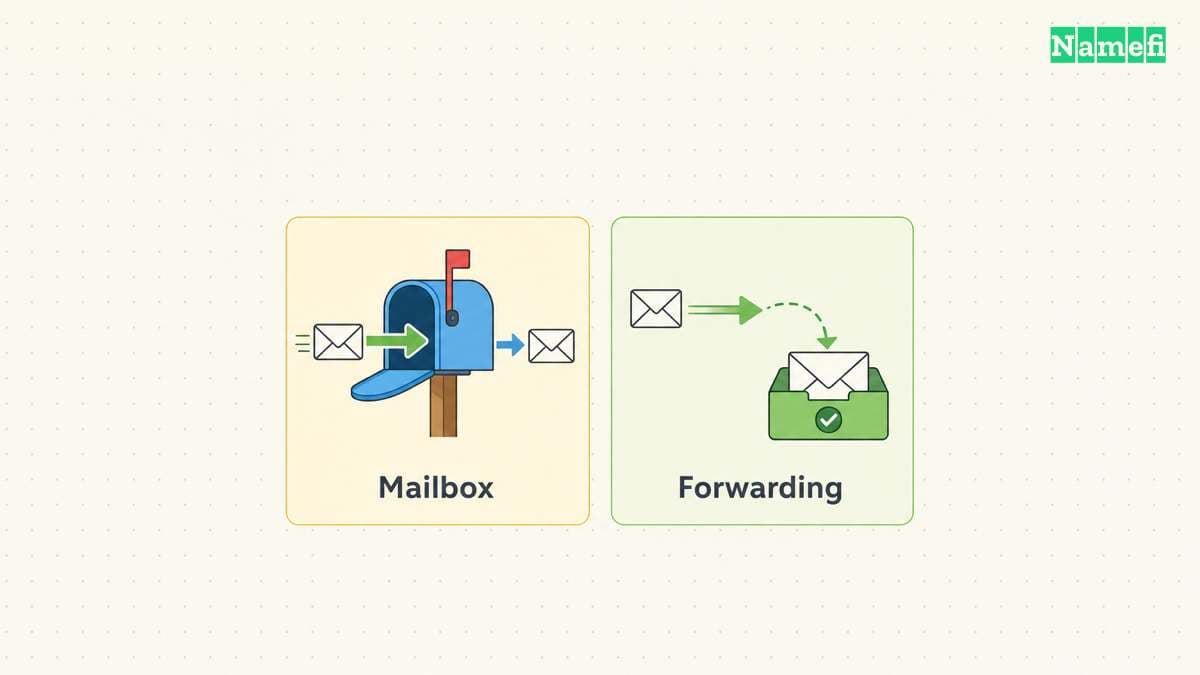
If the requirement is incoming forwarding, evaluate forwarding explicitly. Cloudflare Email Routing can forward messages to destination addresses, while Cloudflare Email Sending supports outbound transactional email. Those are distinct capabilities within the current service. Cloudflare describes both functions.
If employees need ordinary inboxes and replies, evaluate a mailbox product and its actual client workflow. Do not assume that an application sending feature supplies employee inboxes.
Prepare the account and access record:
- The full domain and the person responsible for registration renewal.
- The active DNS provider and the authorized DNS administrator.
- The email provider and the person responsible for user administration.
- The addresses, aliases, and shared access requirements.
- The services that send using the domain.
- The previous provider and the message-retention plan, if migration applies.
Keep administrative access private. Give account access only to authorized staff. Store recovery information through the organization's approved process.
For offer selection, read the domain email offer comparison. This guide starts after the service decision.
Verify domain control with the provider's exact value
In Google's TXT verification procedure, the administrator copies a unique value from the Admin console and publishes the value in DNS. Google then checks that record. Follow the current TXT verification instructions.
For Google Workspace, open Manage domains in the Admin console. Select the domain's verification action and copy the complete supplied value. The Google instructions identify the google-site-verification= prefix. Read the record-copying step.
At the active DNS provider, add the specified record name, type, and value. Check whether the DNS editor automatically appends the domain name. Compare the saved full record name with the provider's instructions.
Return to the email provider and complete verification. If verification fails, inspect the authoritative record before repeatedly pressing the verification button. Confirm the zone, full name, and exact value.
Domain verification and incoming mail routing use different records. Completing verification does not establish that incoming messages reach the new mailbox. Google documents verification separately from MX setup.
Prepare users before switching incoming delivery
Create the required accounts and addresses first. Google's required checklist puts account creation before the MX change. Follow the documented sequence.
For an existing service, schedule the mail migration and decide how to preserve old messages. Google lists importing existing email as a separate setup task. Its additional setup options explain the distinction.
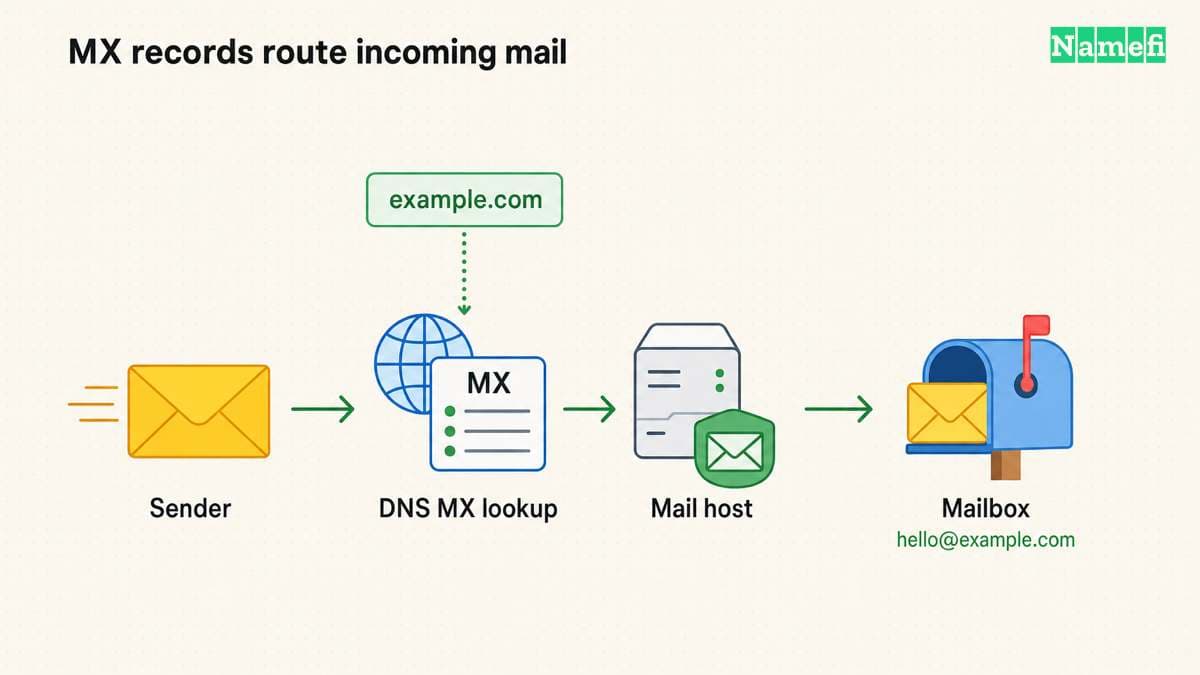
Incoming senders use MX records to locate the receiving mail service. Google currently documents smtp.google.com with priority 1, followed by Gmail activation in the Admin console. Existing working legacy aspmx configurations remain supported. Check Google's MX table and legacy note.
Do not copy that target into a different provider's setup. Use the values supplied by the chosen provider.
Before saving the switch, preserve unrelated website and verification records. Google's standard MX procedure removes other MX records. Follow the intended architecture instead of mixing providers' records without a documented reason. Google warns about old or incorrect MX records.
After saving, compare public MX answers with the intended configuration. Then activate the domain's mail service through the provider's setup workflow.
Authenticate every legitimate outgoing service
A working inbox establishes only the receiving direction. Prepare outgoing authentication for each legitimate sender.
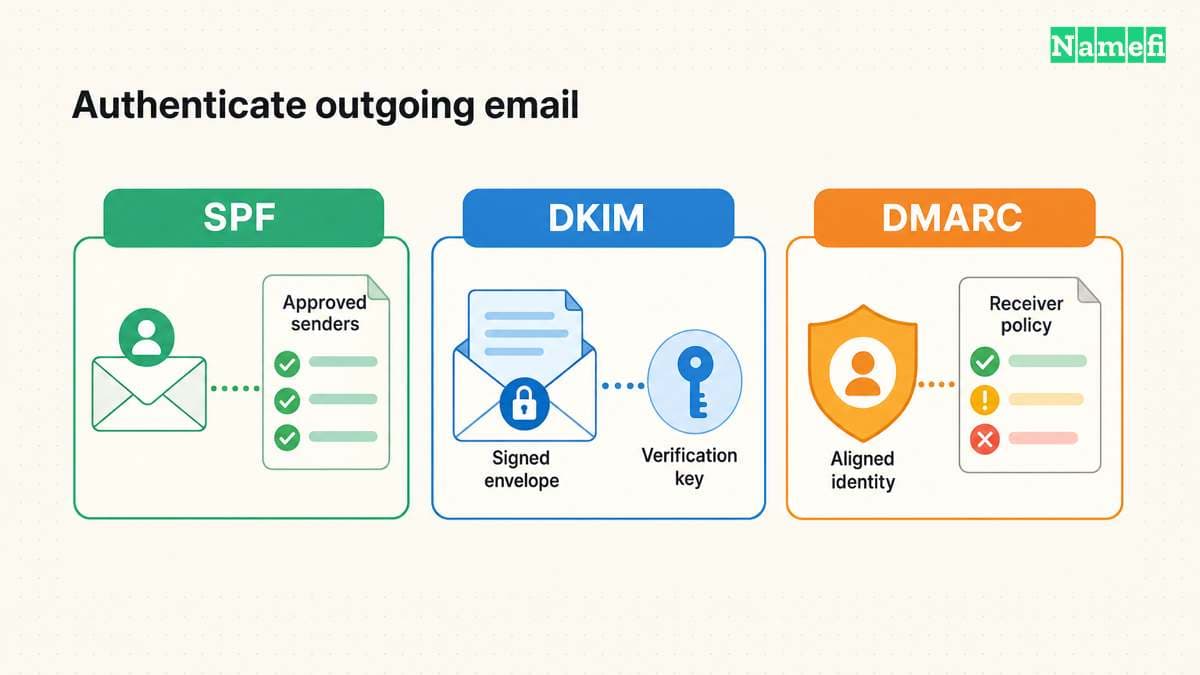
| Mechanism | Setup task |
|---|---|
| SPF | Inventory authorized sending systems and publish the appropriate policy |
| DKIM | Enable signing and publish the provider's public-key information |
| DMARC | Configure alignment, reporting, and a policy suited to the domain's mail flows |
Google's SPF guidance requires identifying all sending services, including automatic website messages. Use that inventory before editing SPF.
DKIM signing and public-key publication are separate tasks. RFC 6376 explains that verifiers obtain a public key and that messages must be signed before leaving the signer's administrative domain. Read the DKIM architecture. Follow your provider's signing activation procedure rather than assuming a DNS record alone completes setup.
For DMARC, use current RFC 9989. Configure aligned authentication and a functioning reporting destination. Review the reports before selecting a stronger handling preference.
Do not automatically apply p=reject to an ordinary employee email domain. RFC 9989 warns against that policy for general-purpose email because mailing lists and other indirect flows create interoperability problems. The current standard also removes the old percentage rollout tag. Read the policy considerations and Appendix A.6.
If the domain already has a deliberate policy, evaluate the new sender against that policy. Avoid replacing a working configuration with a generic tutorial example.
Review the published records with Namefi's email-authentication configuration checker, using the domain and the selector supplied by the sending service. Keep the findings with the sender inventory. Continue the independent delivery and received-message tests because DNS configuration does not establish message authentication or alignment.
Finish with independent delivery and authentication checks
Use an unrelated external account that you control, or a cooperating tester. Send a new incoming message to each important custom address. Send a reply and a separate outgoing message.
Inspect the received message's authentication results. Compare the sender domain, signing identity, and reported results with the intended setup. Test website forms and billing messages through their actual applications.
Use failures to choose the next check. An unknown recipient suggests an address setup problem. Delivery to the old provider suggests a routing question. An authentication failure requires inspection of the actual sending service and identity.
Keep the previous service available until the migration checks succeed. Save the final DNS configuration, responsible administrators, and recovery procedure. The finished result is a usable address with verified delivery in both directions and a documented authentication setup.
Sources and further reading
Google creates users before moving mail
gmail-start official source — fetched 2026-10-30 UTC.
Google documents domain verification
verify official source — fetched 2026-10-30 UTC.
Google documents incoming mail routing
mx official source — fetched 2026-10-30 UTC.
Cloudflare documents routing and outbound email
cloudmail official source — fetched 2026-10-30 UTC.
Google inventories authorized senders
spf official source — fetched 2026-10-30 UTC.
RFC 6376 separates signing from verification
dkim official source — fetched 2026-10-30 UTC.
RFC 9989 governs current DMARC deployment
dmarc official source — fetched 2026-10-30 UTC.
Checked passages: Section 7.4: indirect mail and policy choice, Section 8: aligned authentication and reporting, Appendix A.6: percentage tag replacement, Appendix C.5.2: removed tags.
IANA reserves example domains for documentation
examples official source — fetched 2026-10-30 UTC.
About the author(s)
Fenwei Bian is a software developer in her thirties who spends her working hours in pull requests and her weekends with her hands in soil or sawdust. Years of open source on GitHub taught her that names are interfaces: a good one is clear, honest about what it does, and kind to whoever has to use it next.
She gardens because it rewards patience and punishes wishful thinking, and she does woodwork because a joint either fits or it doesn't. Both habits show up in how she writes about naming — measure twice, check the source, and don't sand over a rough spot and hope no one notices.
For Namefi she writes about how domain markets actually move, the practical trade-offs of tokenizing and flipping names, and picking a domain you'll still be glad you own in twenty years.