How to Connect Your Domain to Vercel Without Getting Stuck on DNS
Add a custom domain to the correct Vercel project, publish the project’s DNS values, preserve email records, and verify the final website.

- domains
- guide
To connect a domain to Vercel, add the exact hostname in the intended project's Settings → Domains page. Then publish the DNS values that Vercel shows for that project. You can keep your existing registrar. Vercel's custom-domain instructions describe the supported configuration routes.
Start by distinguishing three places: the registrar account, the active DNS service, and the Vercel project. Registration, DNS publication, and project assignment are separate jobs. A domain can resolve correctly while Vercel still assigns the hostname to the wrong project.
Examples use reserved example domains.
The project must contain the exact hostname you intend to use
Open the project that already contains the intended deployment. In Settings → Domains, choose Add Domain and enter the hostname. Vercel documents this project-level workflow for both apex domains and subdomains. Follow the provider's current sequence.
For a hypothetical example.com site, decide whether visitors should use example.com, www.example.com, or both. These names need separate consideration. Do not assume that a working apex proves www is configured.
Vercel can prompt for the www name when you add an apex domain. Vercel also recommends explicitly adding the alternate name and configuring the preferred redirect. Its instructions describe that additional domain step.
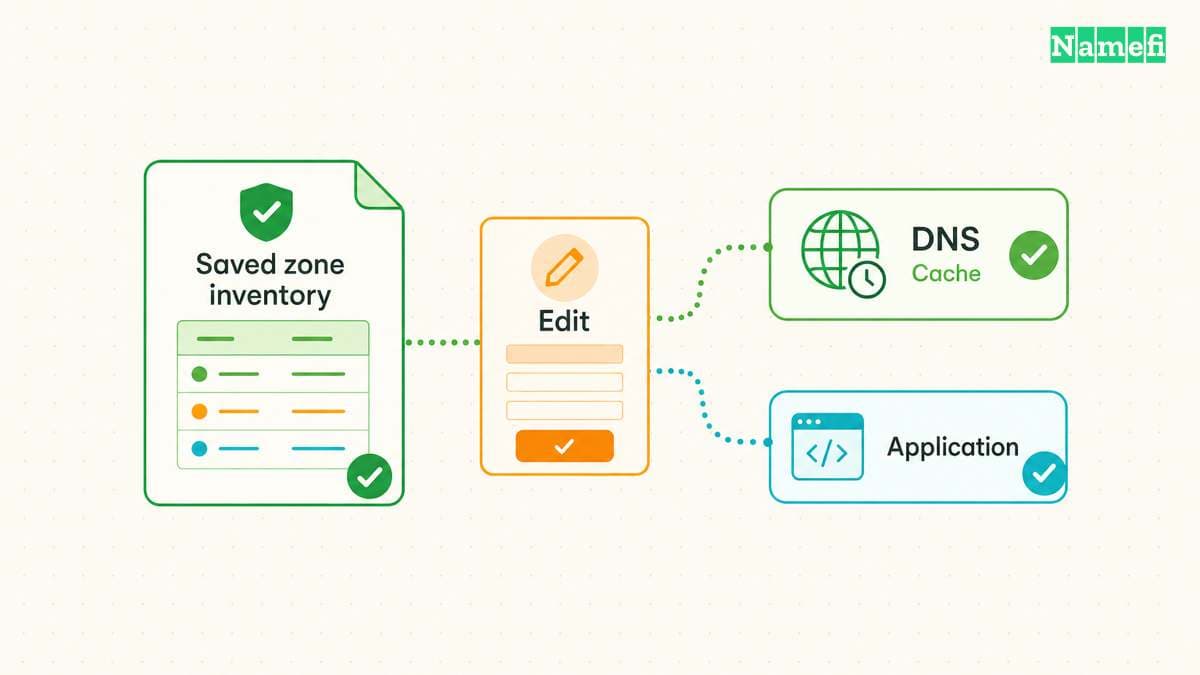
As practical advice, save the project's requested records before editing DNS. Record the exact owner name, type, and value. The saved instructions help you distinguish a copy error from a later configuration change.
The dashboard decides which DNS values belong to the project
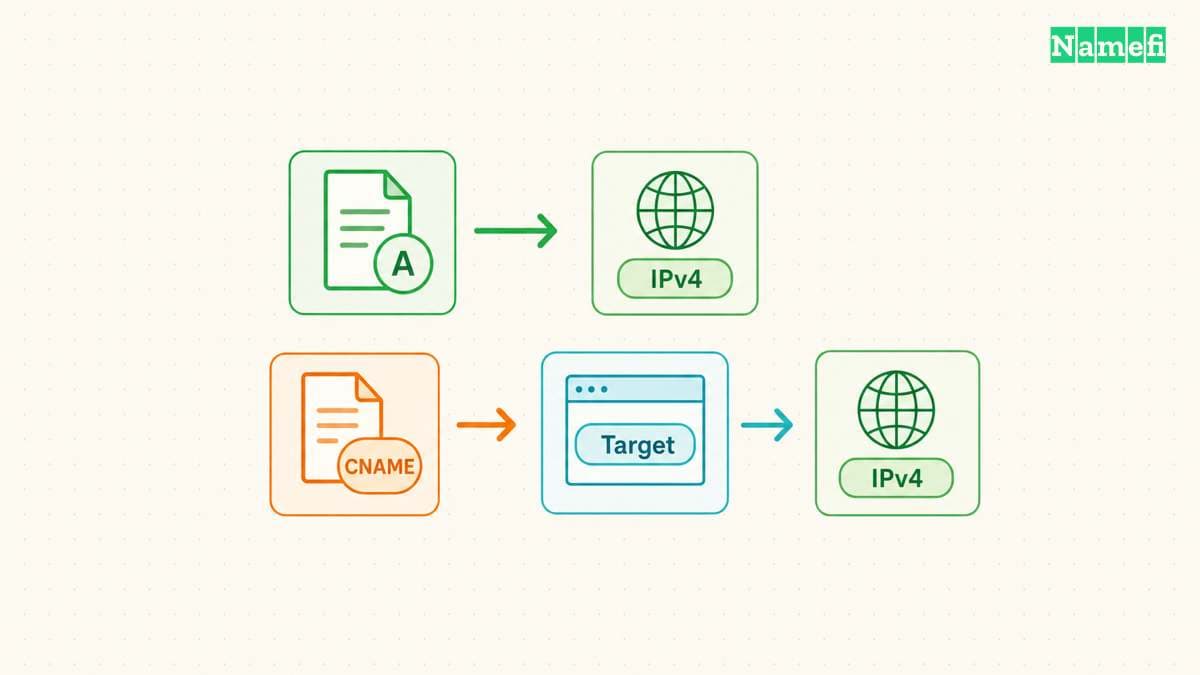
Vercel's documented external-DNS route uses an A record for an apex and a CNAME for a subdomain. The project displays the required values. Vercel states that projects have unique CNAME values. Use your project's values rather than another site's example.
The record types accept different data. An A record stores an IPv4 address. A CNAME stores a target hostname. The address specification and CNAME specification explain that difference. Copying a hostname into an A field cannot satisfy the intended configuration.
Find the authoritative DNS provider before making the edit. If the domain uses nameservers from a different company, the registrar's DNS editor may not control public answers. Open the zone at the active provider.
Check the provider's name-entry convention. The editor may expect www rather than the full hostname. Verify the saved owner name to avoid publishing a duplicate suffix. Also review existing A, AAAA, and CNAME records for conflicts at that exact name.
Do not paste an old Vercel address from a blog into the record field. A copied value can become stale or belong to a different configuration. The project's current instructions are the operative input.
Keeping existing DNS reduces the scope of a website connection
If you change only the website's A or CNAME record at the existing DNS provider, the other records can stay there. Vercel explicitly distinguishes that route from changing nameservers. Its setup guide explains the difference.
Before any edit, save the existing zone records. Identify MX records, email authentication records, verification TXT records, and other active services. This is practical preparation for a reversible change.
If you choose Vercel nameservers instead, copy the existing records into Vercel before changing delegation. Vercel specifically warns to preserve mail and verification records. The nameserver preparation instruction protects those separate services.
Do not move registration merely to solve a website connection. First determine whether the supported external-DNS route meets the project requirement. The domain and hosting guide explains why the services can remain separate.
Domain access verification uses the TXT record Vercel supplies
Vercel may request TXT verification when another Vercel account or team already uses the domain. The documented process verifies access so that the hostname can serve the project. It does not move the domain registration into your account. Vercel explains that boundary.
Copy the exact TXT name and value from the dashboard. Add the record in the active DNS zone. Do not replace unrelated TXT records that email or another service still needs.
If the requested value changes after removing and readding the domain, compare DNS with the new dashboard request. A previous verification value may no longer satisfy the new request. Vercel documents this behavior for its verification records.
For a team-managed domain, ask the person who controls the apex DNS zone to add the requested record. Avoid sharing the registrar password just to publish one verification value. Use the organization's approved access process.
A wildcard needs its own certificate validation plan
Adding a wildcard such as *.example.com introduces additional requirements. Vercel documents nameserver-based validation and a delegated challenge option when nameservers cannot change. Follow the wildcard-specific instructions.
Do not copy a wildcard configuration when you only need one subdomain. A wildcard also does not automatically configure the apex domain. Keep the intended hostname list explicit.
If delegation is necessary, review which service will control the challenge name and renew certificates. The goal is a continuing supported configuration, rather than a one-time green status. For a simple website, finish the ordinary hostname route before expanding the scope.
The final verification includes DNS and the actual site
Return to Settings → Domains and compare Vercel's configuration status with the records you published. If the status remains invalid, inspect the exact hostname and conflicting records. Repeatedly deleting and readding the domain can make the evidence harder to follow.
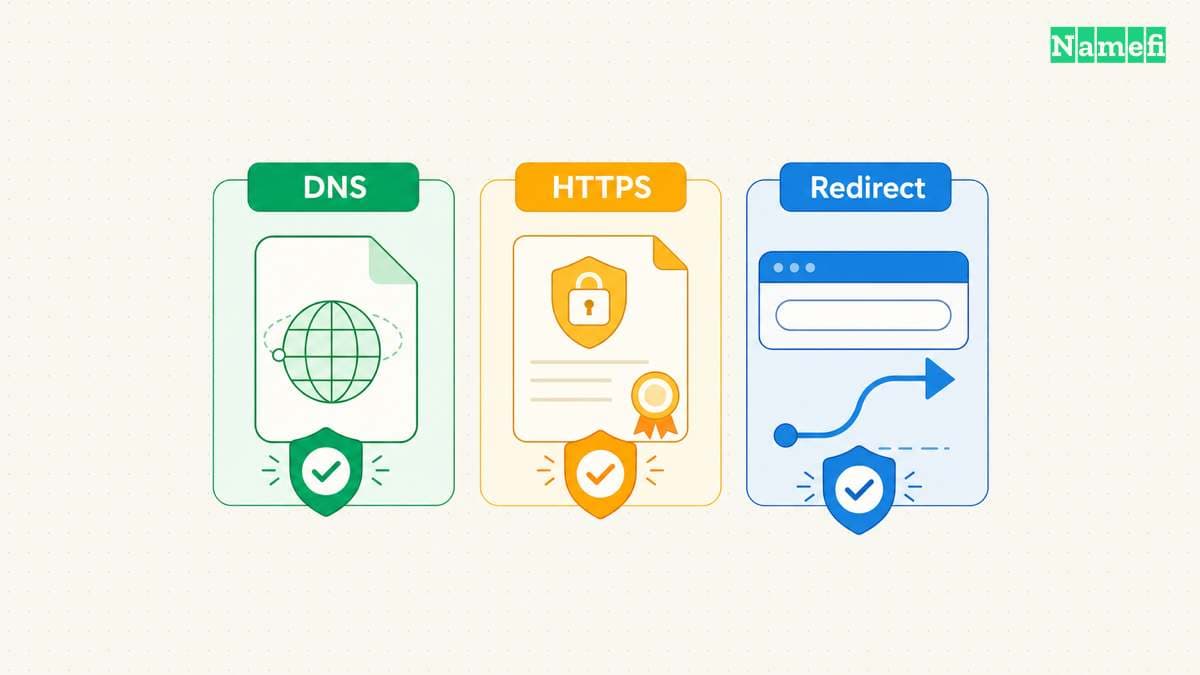
Then visit the public HTTPS address. Confirm the intended deployment, certificate validity, and preferred redirect. Test both apex and www if you configured both. A dashboard status is useful, but the public route still needs a functional check.
If email stopped after a nameserver change, compare the new zone with the saved mail records. If different resolvers return different website values, use the DNS propagation guide to distinguish caching from an unpublished change.
The next action is to open the exact project's Domains settings and save its requested records. Publish those values at the active DNS provider, verify the public route, and keep the service inventory with the deployment record.
Query the exact A, AAAA, CNAME, or verification TXT name requested by Vercel in Namefi's DNS lookup. Compare the selected public resolver's answer with your project dashboard. A matching result supplements, rather than replaces, Vercel's verification and the final HTTPS test.
Sources and further reading
Vercel documents custom domain setup
Vercel documents custom domain setup. Checked 2026-10-30.
RFC 1035 defines address records
RFC 1035 defines address records. Checked 2026-10-30.
RFC 1034 defines canonical aliases
RFC 1034 defines canonical aliases. Checked 2026-10-30.
RFC 2606 reserves example domains
RFC 2606 reserves example domains. Checked 2026-10-30.
About the author(s)
Fenwei Bian is a software developer in her thirties who spends her working hours in pull requests and her weekends with her hands in soil or sawdust. Years of open source on GitHub taught her that names are interfaces: a good one is clear, honest about what it does, and kind to whoever has to use it next.
She gardens because it rewards patience and punishes wishful thinking, and she does woodwork because a joint either fits or it doesn't. Both habits show up in how she writes about naming — measure twice, check the source, and don't sand over a rough spot and hope no one notices.
For Namefi she writes about how domain markets actually move, the practical trade-offs of tokenizing and flipping names, and picking a domain you'll still be glad you own in twenty years.