How to Get a Free SSL Certificate With Let’s Encrypt
Choose managed HTTPS or Certbot, validate domain control, install a Let’s Encrypt certificate, and test renewal without unsafe workarounds.

- domains
- guide
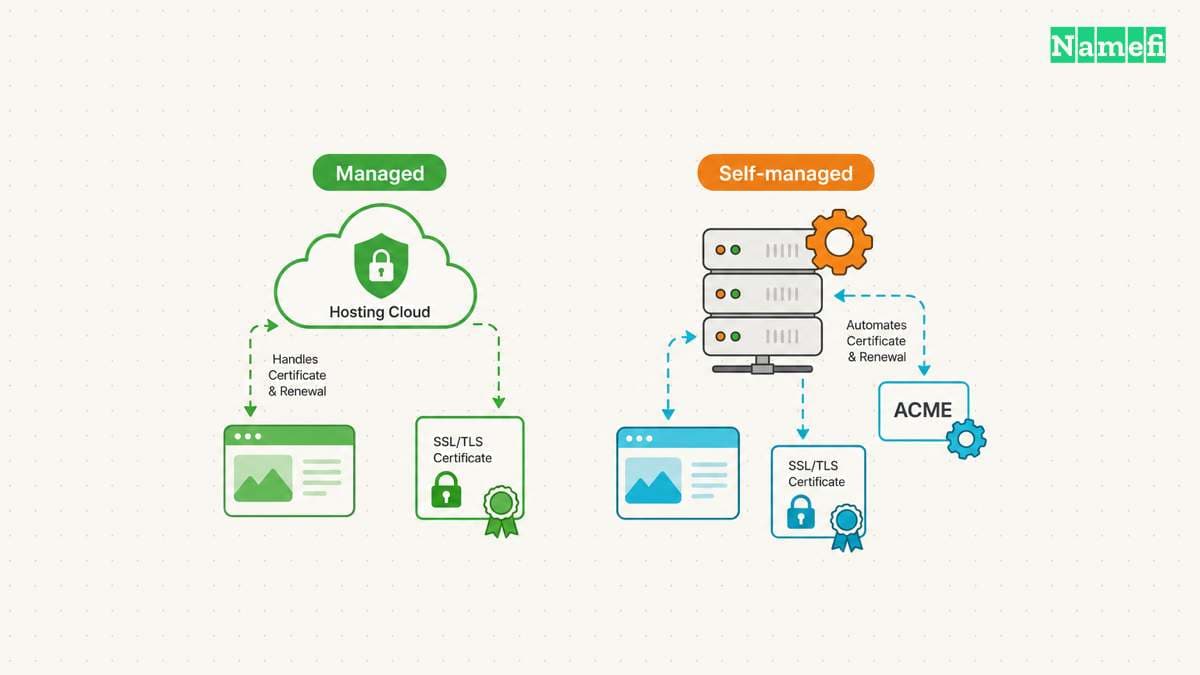
To get a free certificate from Let’s Encrypt, first check whether your hosting provider manages HTTPS for you. If the provider does not, run a supported ACME client such as Certbot on a server you administer. Let’s Encrypt recommends that decision sequence. You do not download a certificate by entering your domain on its informational website.
Let’s Encrypt does not charge for its certificates. A hosting provider can charge for integration or management. The official FAQ distinguishes those costs. The certificate is only part of a working HTTPS setup: the server must present the certificate and renewal must continue working.
Managed hosting can perform the certificate work
Open the hosting project's custom-domain settings and look for HTTPS or certificate status. Check the provider's instructions for the exact hostname. If the provider manages certificates, let that documented process handle issuance and renewal. Let’s Encrypt describes the managed-hosting route.
As practical advice, avoid starting another certificate tool before understanding the existing setup. Multiple tools can create confusing configuration ownership. Identify which service receives public HTTPS traffic and which service installs its certificate.
If a custom domain is still unverified, finish the provider's DNS instructions first. Confirm that the domain points to the intended project. A certificate request cannot repair a hostname assigned to the wrong application.
If the site runs on a server you administer, identify the operating system and web server before selecting installation instructions. The official Certbot instruction selector provides routes for different environments. Do not treat an Nginx command as an instruction for every hosting platform.
Domain validation chooses the challenge that fits the service
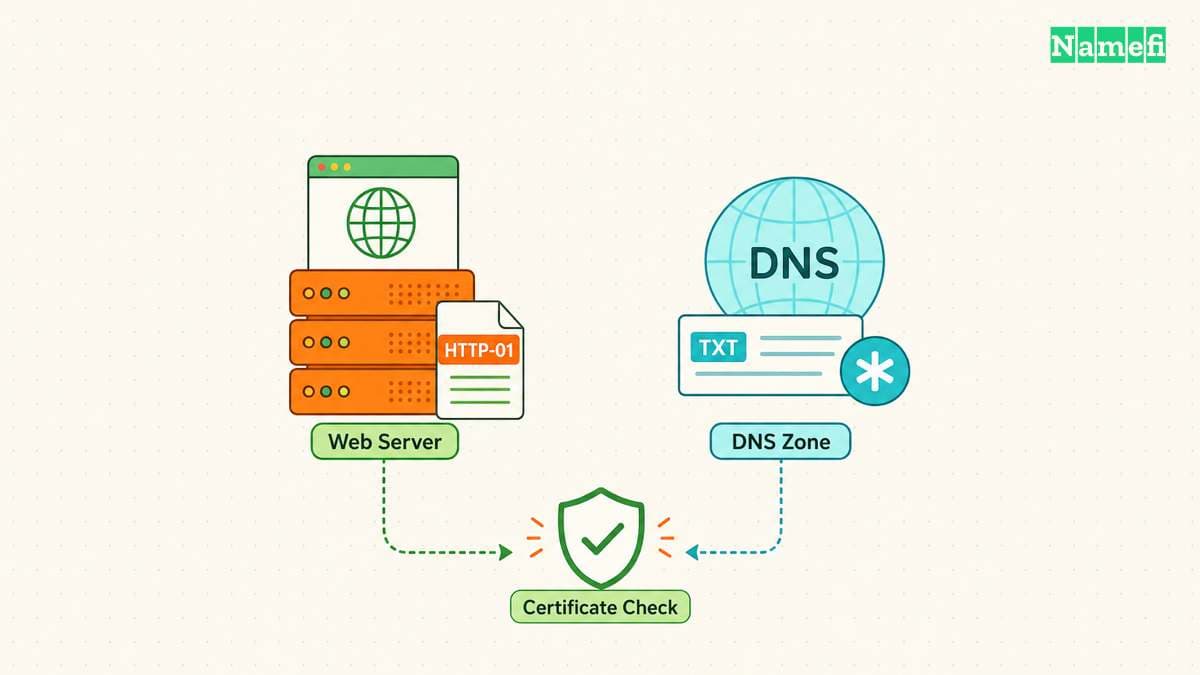
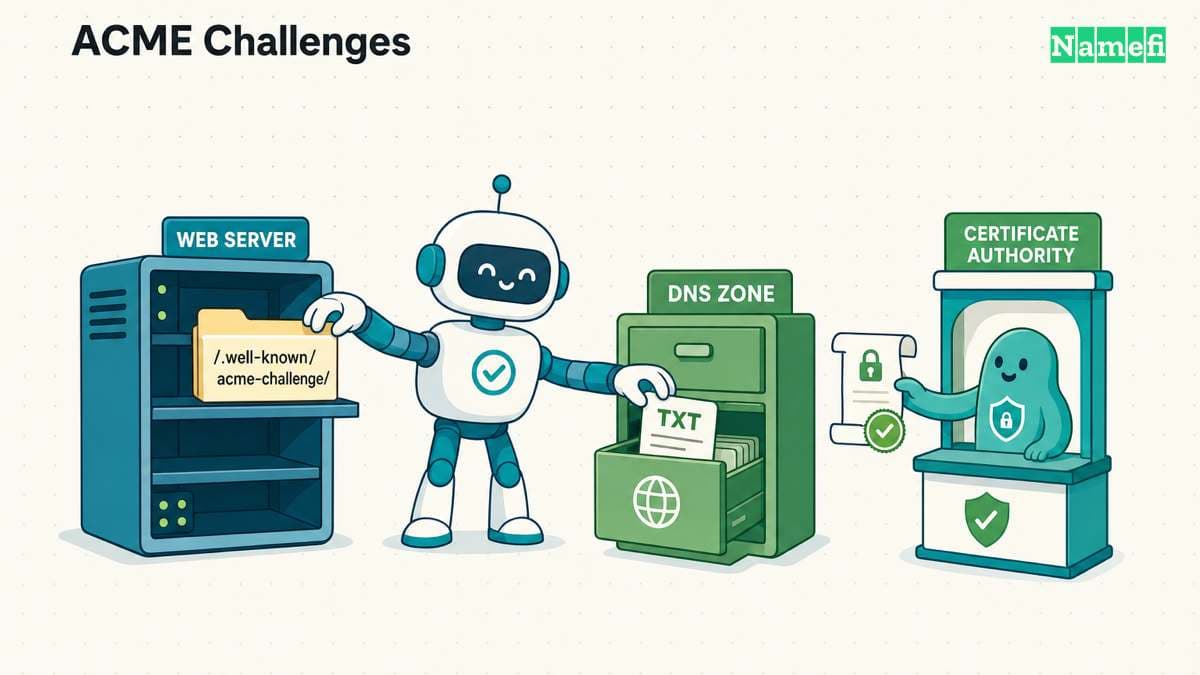
Let’s Encrypt checks control of the requested names through ACME challenges. HTTP-01 uses a challenge file under /.well-known/acme-challenge/. Let’s Encrypt retrieves that file through HTTP on port 80. Its challenge documentation defines those requirements.
For HTTP-01, verify that the challenge reaches the correct server. A reverse proxy, application redirect, or multiple-server setup needs consistent routing. Review the failed request and the relevant configuration rather than disabling access controls across the server.
DNS-01 places a specific TXT value at _acme-challenge under the requested domain. DNS-01 can support wildcard issuance. HTTP-01 cannot issue wildcard certificates. The official challenge comparison explains that boundary.
DNS automation needs appropriate provider access. Let’s Encrypt recommends narrowly scoped API credentials because broad DNS credentials increase the impact of a server compromise. Its DNS-01 guidance explains the credential risk.
Choose a challenge your environment can automate reliably. A one-time manual DNS edit may get past today's request while leaving the next renewal unfinished. Check the ACME client's documented renewal path before making that choice.
If the client uses DNS-01, inspect the supplied TXT owner name in Namefi's DNS lookup. Compare the public resolver's answer with the challenge value. Keep the ACME client's issuance and renewal checks separate: this tool is a DNS lookup, not a certificate checker.
The Nginx example requires a matching server environment
The following route applies to Nginx on Linux using the Certbot snap installation method. It is a conditional example, rather than a universal installation script. Open the exact EFF instructions and confirm the prerequisites before running commands.
Prepare a current backup of the Nginx configuration. Confirm the domain serves the intended HTTP site and that you can administer the server. Review existing Certbot installations before adding another installation method.
EFF's instructions install the snap with sudo snap install --classic certbot. Follow the same page's command-path preparation for the actual machine. Do not blindly replace an existing executable or symlink.
For automatic Nginx integration, EFF documents sudo certbot --nginx. Certbot can obtain a certificate and edit Nginx configuration. For certificate issuance without that installation change, EFF documents sudo certbot certonly --nginx. The instructions describe the two modes.
Read the requested hostnames before confirming issuance. Request only names you control and intend to serve. After the command finishes, review the reported result and the resulting web-server configuration. A successful process exit is a lead for verification, rather than the whole verification.
Renewal needs a test before the setup is complete
EFF's instructions include sudo certbot renew --dry-run to test automatic renewal. The same instructions describe a scheduled renewal job supplied by the installation. Use the documented renewal check.
Run the dry run after the initial setup and investigate any failure. Check whether the challenge still reaches the server or whether the DNS plugin still has its required access. Preserve the renewal mechanism when changing hosting, DNS, or server permissions.
Create an operational record of the client, installation method, scheduled job, and responsible administrator. Avoid recording private keys or API tokens in that document. Give the next administrator enough information to locate the configuration safely.
Add monitoring for the certificate actually served by the public endpoint. A certificate on disk and the certificate presented to visitors can differ if the service did not reload or a proxy terminates HTTPS elsewhere. Treat monitoring as a verification task for the service architecture.
Browser verification distinguishes issuance from a working site
Visit each intended HTTPS hostname and inspect the browser's certificate information. Check that the name matches and that the browser accepts the certificate chain. Then exercise an important page or action in the application.
If the browser reports an error, keep certificate verification enabled while investigating. Check hostname coverage, the server's selected certificate, and any proxy in front of the application. Do not train users to bypass the warning.
If issuance fails, read the exact challenge error first. For HTTP-01, inspect the public challenge route and port-specific access. For DNS-01, inspect the exact TXT name and published value. Retrying an unchanged failure without understanding the message adds no evidence.
Use the HTTPS guide for the broader connection model. The immediate next action is to identify the certificate manager: the hosting provider or your own ACME client. Complete one supported route, verify the public endpoint, and test renewal before marking the work finished.
Sources and further reading
Let’s Encrypt explains client selection
Let’s Encrypt explains client selection. Checked 2026-10-30.
Let’s Encrypt explains certificate fees
Let’s Encrypt explains certificate fees. Checked 2026-10-30.
Let’s Encrypt explains validation challenges
Let’s Encrypt explains validation challenges. Checked 2026-10-30.
EFF provides Nginx installation instructions
EFF provides Nginx installation instructions. Checked 2026-10-30.
About the author(s)
Fenwei Bian is a software developer in her thirties who spends her working hours in pull requests and her weekends with her hands in soil or sawdust. Years of open source on GitHub taught her that names are interfaces: a good one is clear, honest about what it does, and kind to whoever has to use it next.
She gardens because it rewards patience and punishes wishful thinking, and she does woodwork because a joint either fits or it doesn't. Both habits show up in how she writes about naming — measure twice, check the source, and don't sand over a rough spot and hope no one notices.
For Namefi she writes about how domain markets actually move, the practical trade-offs of tokenizing and flipping names, and picking a domain you'll still be glad you own in twenty years.