How to Set Up Gmail With Your Own Business Domain
Set up Google Workspace Gmail with your domain, verify ownership, switch MX records, and test receiving, sending, and authentication.

- domains
- guide

Use Google Workspace to create Gmail mailboxes at your own business domain, such as alex@example.com. Google’s business Gmail page describes custom-domain email. You need control of the domain’s DNS and a Workspace setup that includes Gmail.
Begin with Google’s domain verification instructions. Keep the setup open while you add the requested DNS record. If the domain already receives email elsewhere, prepare the users and migration before switching delivery.
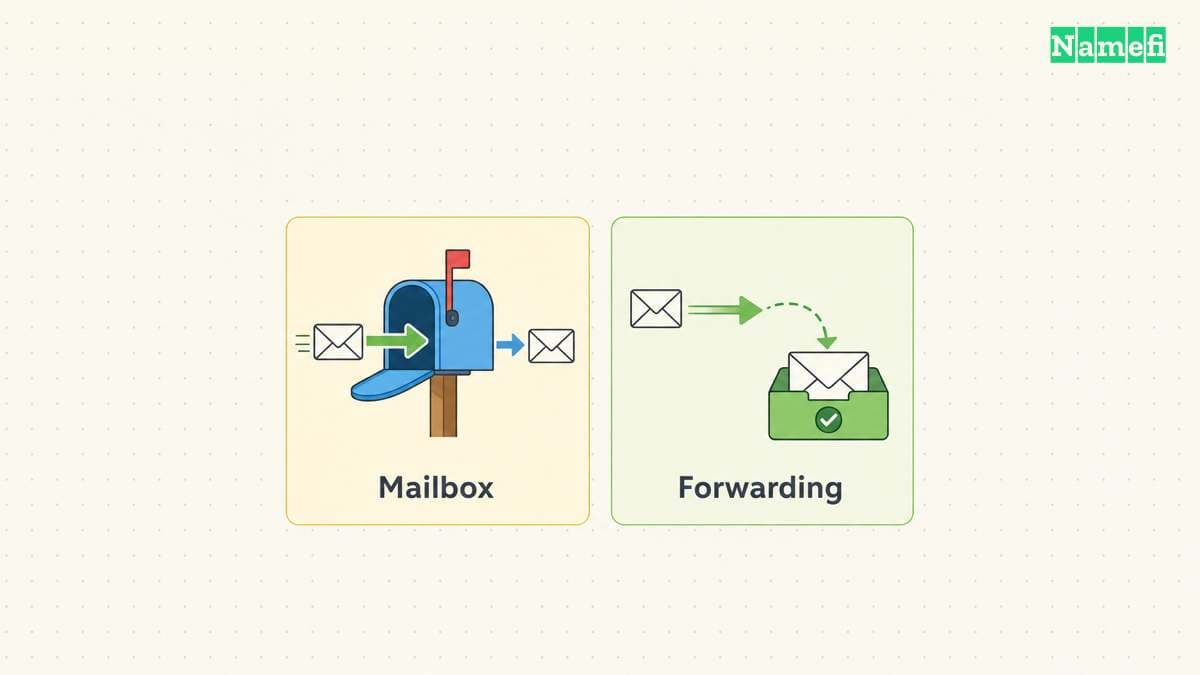
A custom Gmail mailbox differs from a forwarding address
Decide what the business needs before changing DNS. A mailbox receives and stores messages for a user. A forwarding address directs incoming messages toward another destination. An address shown in a message’s From field does not by itself establish where the mailbox lives.
For Gmail as the business mail service, use the Workspace setup for your domain. Do not assume that creating a personal @gmail.com account also configures @example.com.
Our custom-domain email guide explains the broader provider choice. This article follows Google Workspace specifically.
Make a list of real people, shared business addresses, and existing mail sources. A hypothetical business might need individual mailboxes for employees and a separate plan for sales@example.com. Decide who must access each address and whether the address needs its own history.
Check the selected plan’s billing term, users, storage, support, and relevant features before purchase. This guide does not quote a universal price. The live plan and checkout determine your actual subscription cost.
You should prepare the account before moving incoming mail
Use an administrator account authorized to manage the organization. Keep account recovery available independently of the domain that you are moving. This is practical continuity advice for a migration.
Inventory existing mailboxes, aliases, forwarding rules, and applications that send mail. Include a website contact form, invoicing service, marketing platform, and help desk when the business uses those services.
Create the required users and destinations in the new service. Plan how to copy historical messages if the business needs historical mail. Changing MX records changes future delivery routing. The DNS change does not perform a mailbox-history migration.
Schedule the change when someone can test delivery and respond to failures. Keep the previous service available during the planned transition. Do not cancel the previous service just because the new subscription exists.
Google verifies domain control through a unique TXT record
In the Admin console, open the domain setup and copy the unique verification value. Google’s TXT verification procedure requires the exact value, including google-site-verification=.
Add the TXT record at the authoritative DNS provider. The authoritative DNS provider may differ from the registrar. Use the account that actually publishes the domain’s records.
- Open the domain’s active DNS zone.
- Add the TXT record requested by Google.
- Use the provider’s format for the root record name.
- Save the record without deleting unrelated records.
- Return to Google’s setup and confirm verification.
Google says the verification record must remain until Google detects the record and verifies control. The verification step and the mail-routing step are separate. A verified domain can still have mail routed to its previous provider.
If verification fails, inspect the saved record name and value. An interface may append the domain automatically. Avoid accidentally creating a doubled name. Follow Google’s troubleshooting guidance before replacing unrelated records.
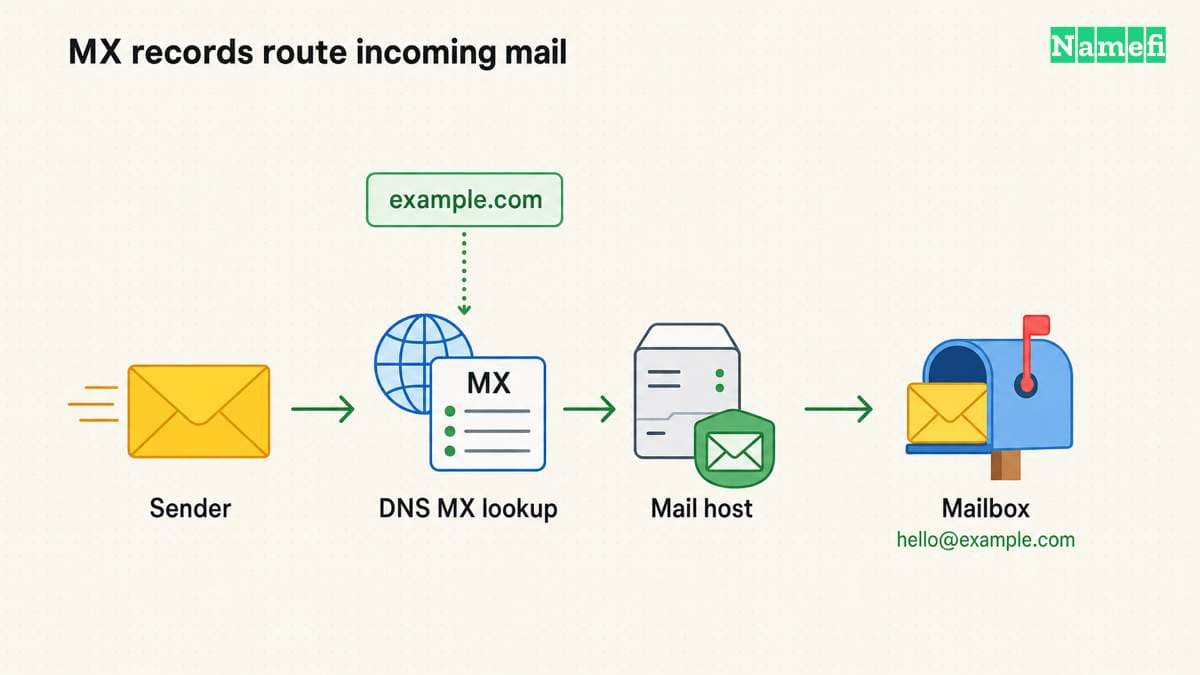
MX records direct incoming messages to Google
Once the receiving users and destinations are ready, follow Google’s MX setup instructions. At the time checked, Google documents smtp.google.com with priority 1 for the current single-record setup.
| DNS field | Google’s documented setting |
|---|---|
| Type | MX |
| Root name | Provider-specific blank or @ |
| Priority | 1 |
| Destination | smtp.google.com |
| TTL | Follow the DNS provider’s supported setting |
The MX destination is a hostname. Do not enter a mailbox address, a website URL, or an IP address in the destination field.
Google says older working Workspace domains can continue using the supported legacy aspmx records. Do not replace a working legacy configuration solely because the newer setup uses one record.
For a complete switch to Google, follow Google’s instructions for replacing the previous provider’s MX records. A split-delivery or coexistence arrangement needs its own routing design. Do not treat mixed providers in the MX list as an automatic migration strategy.
Return to the Admin console and activate Gmail for the domain. Test external delivery after Google reports the setup status. DNS caching can delay the visible change, so preserve the time and published values when diagnosing a transition.
Outgoing authentication needs its own configuration
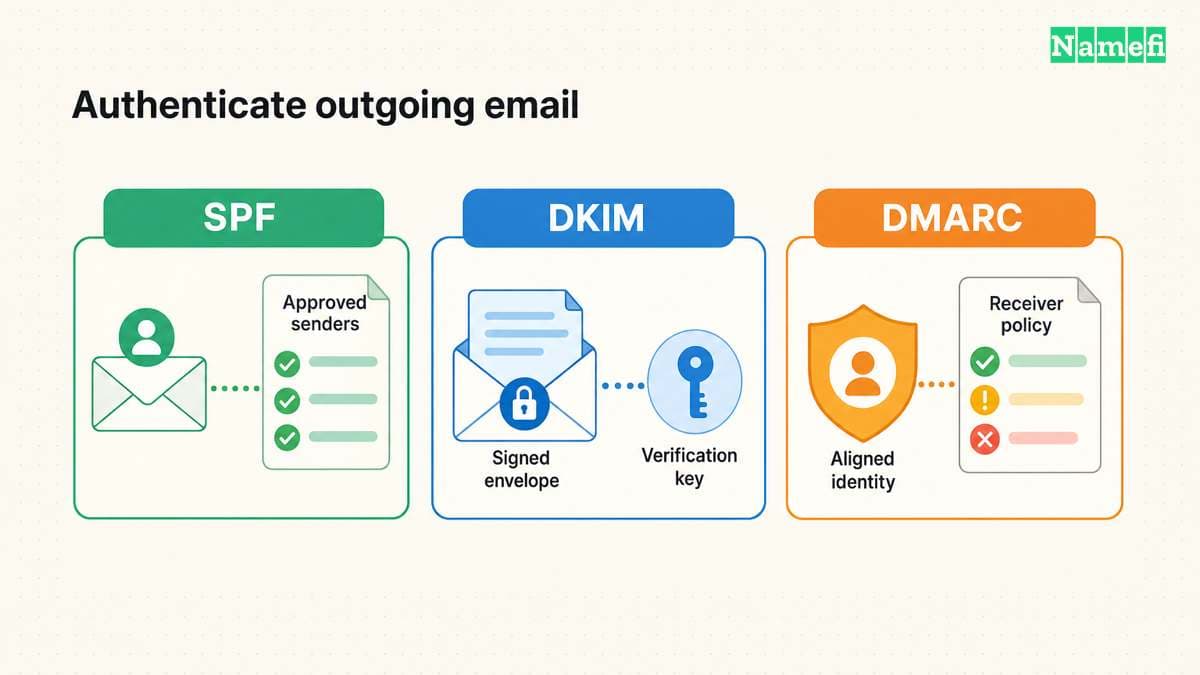
MX records identify receiving infrastructure. Outgoing authentication requires separate work. Google’s SPF instructions start by identifying all legitimate sending services.
If Google is the only sender, Google documents v=spf1 include:_spf.google.com ~all as the relevant SPF value. If other platforms send mail, follow the combined-sender instructions instead. Do not overwrite a working authorization for another legitimate service without reviewing the service.
For DKIM, Google documents generating a key, publishing the public key, and enabling authentication. Use the selector and public value from your own Admin console. A copied example key cannot authenticate your organization’s mail.
Review DMARC after confirming the sending inventory and authentication. The current DMARC standard warns about strict rejection and indirect mail flows. Do not copy an immediate rejection policy without checking forwarding, mailing lists, and reports. The standard also removes the old pct tag, so older percentage rollout recipes need review.
Before the live sending test, inspect the domain and the selector from your Admin console in Namefi's email-authentication configuration checker. Review the published SPF, DKIM-key, and DMARC findings. The checker does not enable Google signing or verify the authentication result of a delivered message.
A delivery test should cover more than one direction
Send a message from an unrelated external account to each important business address. Reply from the new Gmail mailbox. Then send a new outgoing message to an external recipient and inspect the received authentication results.
Test aliases, shared workflows, and application-generated messages separately. A successful employee reply does not prove that an invoicing platform uses the correct authentication.
| Symptom | First check |
|---|---|
| Google cannot verify the domain | Exact TXT value and active DNS zone |
| Incoming mail reaches the old provider | Published MX records and transition timing |
| A business address rejects mail | User, alias, group, or routing configuration |
| Application mail fails authentication | Actual sender and corresponding SPF or DKIM setup |
Record the final MX configuration, sending services, administrators, and recovery path. Close the previous service only after the planned history migration and delivery tests succeed.
Sources and further reading
Google offers custom business email
Google offers custom business email, checked 2026-10-30.
Google explains domain verification
Google explains domain verification, checked 2026-10-30.
Google publishes the Gmail MX settings
Google publishes the Gmail MX settings, checked 2026-10-30.
Google explains SPF sender authorization
Google explains SPF sender authorization, checked 2026-10-30.
Google explains DKIM signing
Google explains DKIM signing, checked 2026-10-30.
The DMARC standard explains interoperability
The DMARC standard explains interoperability, checked 2026-10-30. See also Appendix A.6 for the removal of pct.
About the author(s)
Fenwei Bian is a software developer in her thirties who spends her working hours in pull requests and her weekends with her hands in soil or sawdust. Years of open source on GitHub taught her that names are interfaces: a good one is clear, honest about what it does, and kind to whoever has to use it next.
She gardens because it rewards patience and punishes wishful thinking, and she does woodwork because a joint either fits or it doesn't. Both habits show up in how she writes about naming — measure twice, check the source, and don't sand over a rough spot and hope no one notices.
For Namefi she writes about how domain markets actually move, the practical trade-offs of tokenizing and flipping names, and picking a domain you'll still be glad you own in twenty years.